Configure Controls
The basic keyboard controls are now configurable.
This dialog allows you to customize most of your
keyboard and mouse controls such as your
movement keys.
Configuring Controls
Viewing the assigned keys
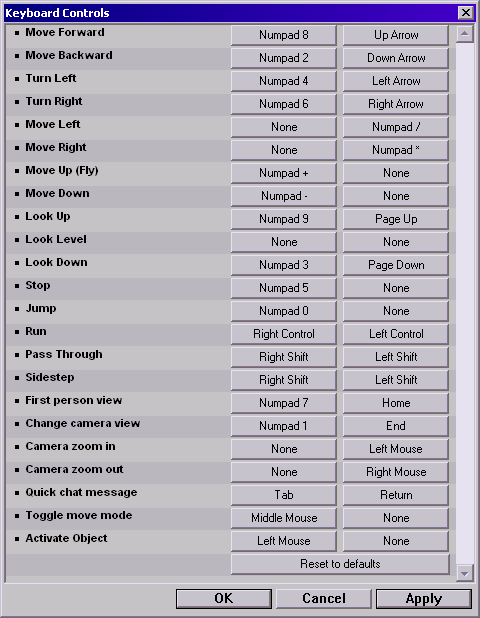
To see what keys are already assigned, open the Options menu and select Configure Controls...
The Keyboard Controls dialog will allow you to assign key presses or mouse clicks to
any of the functions listed in it.
Use the scroll bar if not all of the functions are visible at once.
Some of the keys that can be assigned to a function are reserved for typing
under normal circumstances, but will serve the assigned function while in Move Mode.
Assigning a key to a function
To assign a key to a function, click on either of
the two buttons in the same row as that function in the
Keyboard Controls dialog,
and then press the key or mouse button
that you would like to assign to it.
Multiple functions in a single key
If you find that there are certain keys you end up almost always using at the same time,
or certain functions which you would like to combine onto a single key for any other reason,
simply
assign the same key
to two or more functions by first mapping the key to one function,
and then the what ever other function you also want that key to control.
International keyboard support
When you assign keys to functions,
Active Worlds will attempt to display an easy to recognize name for the
assigned key,
but even if the key is not recognized by Active Worlds,
you will still be able to assign it to functions.
This means that people who have keyboards with more or different keys on them
than a standard English keyboard will now be able to make
better use of those keys in Active Worlds.
Removing a key assignment
If you would like to stop a key from serving a specific function,
click on the button with that key's name on it in the same row as
the function which you wish to remove it from,
and then press the [Esc] Escape key on your keyboard.
Restoring default controls
Feel free to try out different arrangements of controls,
and if you decide you want to start over with the default
keyboard mappings, simple scroll down to the bottom
of the
Keyboard Controls dialog,
and click the Restore to defaults button.
Control Enhancements
The following are movement keys which can be assigned. They control the movement of your
avatar in the 3D world. If you are holding the run key (see below) then all of these actions
will happen faster.
However, if you are flying or swimming and the Ignore Pitch When Flying
option is not checked, then you will move the direction you are facing. This would cause
you to rise if you were looking up.
- Forward - If you are walking normally, this will cause you to move horizontally forward.
However, if you are flying or swimming and the Ignore Pitch When Flying
option is not checked, then you will move the opposite of direction you are facing.
This would cause you to move down if you were looking up.
- Backward - If you are walking normally, this will cause you to move horizontally backward.
key (see below), in which case you will move to the left.
- Turn Left - This will cause you to turn left, unless you are holding the sidestep
key (see below), in which case you will move to the right.
- Turn Right - This will cause you to turn left, unless you are holding the sidestep
- Move Left - This causes you to "sidestep" (move sideways) to the left.
- Move Right - This causes you to "sidestep" (move sideways) to the right.
move directly up.
- Move Up - This key only works if you are flying or swimming, and will cause you to
move directly down. If you are flying and press this key until you bump into a surface below you,
then you will stop flying simply land on whatever surface you bumped into.
- Move Down - This key only works if you are flying or swimming, and will cause you to
The following are various action keys which can be assigned.
- Look Up - Causes your view to tilt upward
- Look Level - Causes your view to look directly ahead.
- Look Down - Causes your view to tilt downward
drifting forward abruptly, rather than coasting to a stop.
- Stop - Halts all movement (except for falling). This is handy if you are flying and want to stop
controlled by the world gravity settings. In most worlds you can jump about a meter high.
- Jump - Causes your avatar to jump up in the air. Note that the distance you can jump is
- Run - Speeds up all movement keys. (see above)
Note that in some worlds this may not be allowed, and this key will have no effect.
- Pass Through - This will cause you to walk through normally solid objects (such as walls).
- Sidestep - Causes the Turn Left / Turn Right keys to act as Move Left / Move Right instead.
- First Person View - Returns the camera to the normal view
- Locked Overhead View - Places the camera behind your avatar, looking down at you from above.
attempting to stay behind you.
- Chase Camera - Places the camera behind your avatar, floating. The camera will drift after you,
- Front Camera - Places the camera in front of your avatar.
closer to your avatar.
- Zoom In - When in the Case Camera or Front Camera views, this causes the camera to move in
from your avatar.
- Zoom Out - When in the Case Camera or Front Camera views, this causes the camera to move away
chat line so you can type a message. Once you hit enter, you will return to move move.
- Quick Chat - If you are in Move Mode, this will halt your movement and place the cursor on the
can be used to control your avatar. The chat line is disabled, and the main keyboard (which is normally
used for typing) can be used for any of the movement or action keys listed on this page. Note that
if you make a key on the main keyboard (for example, the spacebar) your Move Mode key, then you cannot
use it to START move mode (since you would simply type a space on the chat line instead). Note that F2
also acts as a universal Move Mode key, regardless of what other keys you may assign to this action.
- Move Mode - This toggles move mode. When in move mode, the mouse pointer disappears and the mouse
objects that you see simply by looking directly at them and pressing the Activate key. This allows you
to interact with objects without needing to exit move mode.
- Activate - When in Move Mode, the mouse pionter disappears. However, you may still "click on"
Notes
The Print Screen, Scroll Lock, and Pause keys are not assignable,
since they cannot work as normal movement keys.
The Alt and Escape keys can be used as alternative ways to exit move mode.
The + and - on the keypad will not show up in the chat window, but they WILL show up if typed from the main keyboard.
The browser will differentiate between separate keys that generally serve the same function,
such as the left and right control keys, which can now be mapped independently of each other to separate functions.
In addition to effecting the functions of the
assigned Move Left and Move Right keys,
holding the assigned sidestep key while in Move Mode will
allow you to sidestep using the mouse.
Aside from the addition of totally new functions,
the default configuration is set up to mimic the keyboard assignments
that were used before Active Worlds 3.4 added the ability to customize
the controls.
As of Active Worlds 3.4, the F2 key has been re-assigned to changing into and out of the new "move mode".
The old "mouse move" and "mouse freelook" buttons on the toolbar have been replaced by a single "move mode" button which can now be assigned to a custom key in addition to it's built in assignment to the F2 key.
By default, the middle mouse button is assigned to the Toggle move mode function.
You can control which mouse movement style this button uses under Options -> Settings -> General, by clearing or setting the "Freelook mouse" checkbox.
Also, Move mode (either freelook or mouse move) now disables the chat and whisper windows so that you can no longer type when in move mode.
This is so that the main keyboard keys can be assigned as movement keys if desired.
Using the jump key, the user will jump about a meter in the air. Note that you will have to set this function in the Keyboard Controls screen if you wish to assign it to a key that will work when Num Lock is on.